



As a sales or logistics employee, you want to make sure that goods are not planned for shipment on days when the warehouse is closed. For example, if a customer order is planned for a public holiday or weekend, the system should stop the order before it is released. This helps you avoid unrealistic delivery dates and manual corrections later in the process.
Let’s check how this can be done!
The Check Deadline option must be enabled, therefore open Wood Setup.
In the Notifications FastTab, activate the Check Deadline checkbox.
Open Locations.
Select the Location for which you want to add nonworking days and click Manage > Edit in the top menu.
In the Warehouse FastTab open the drop-down menu for Base Calendar Code.
In the overview, click on Show Details.
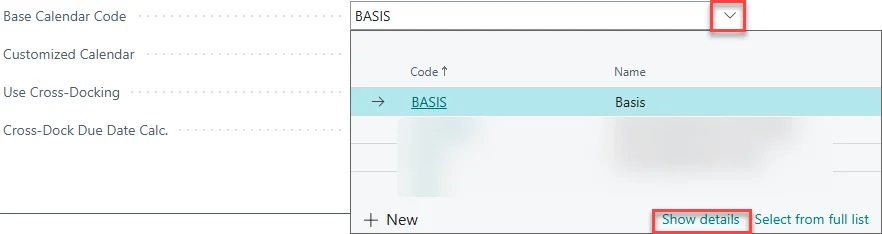
Besides regular nonworking days such as weekends, you can also define additional nonworking days, for example during summer shutdown or annual stock take. Select a future date and enable the Nonworking field.
For a better overview, enter a Description like Stocktaking.
Let’s test the setup and create a new Sales Order for the Location Code, for which you adjusted the calendar.
Enter the day you marked as nonworking in step 7 in the Requested Delivery Date field in the General FastTab.
Enter at least one Item line with a Quantity.
Try to Release the Sales Order. The system shows a notification because the selected delivery date is a nonworking day for this Location.
After using the Deadline Check and entering nonworking dates in the calendar for Locations, shipment dates are planned only on working days. This allows sales and logistics to respond early and manage shipment planning reliably.