



As a sales employee, you regularly send documents such as sales quotes to your customers by email. Besides the standard email text and available placeholders, you may want to include additional information that is relevant to the document, for example a reference, commission text, or information related to the salesperson.
Entering this information manually each time takes extra effort and makes it harder to keep your emails consistent. It would therefore be helpful if information from the sales document could automatically be included in the email.
Let’s see how you can do so!
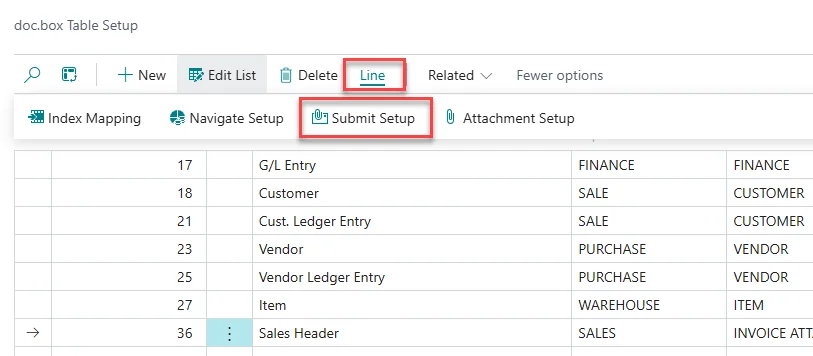
Open doc.box Table Setup.
Select the table for the document from which you send the email. For example, select Sales Header when configuring emails for Sales Quotes.
While selecting the table, click Line and Submit Setup in the top menu.
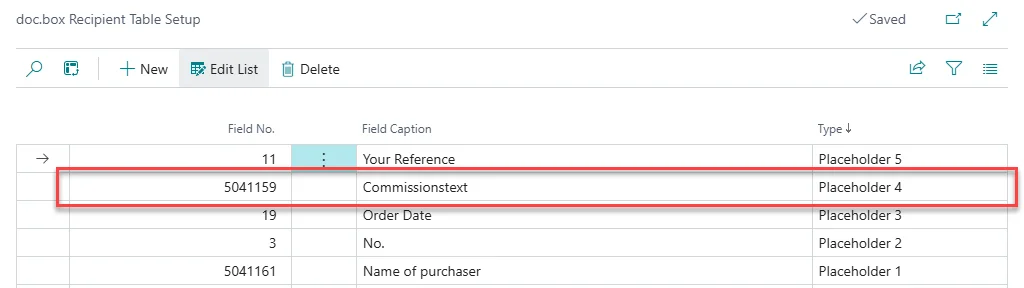
On the page that opens, add the field whose value you want to include in your email text. For example, you could add 5041159 – Commission Text.
Assign the field to an available Placeholder, by selecting it in the Type column, for example Placeholder 4.
Next, let’s see if the field shows up in the Placeholders for the Extended Mail Text. To do so, go to doc.box Report Setup.
In the list, find the line for the document type for which you want to change the email text to include the new Placeholder, for example Sales Quote, and click on the drop-down arrow and Show details in the Extended Mail Text Code column.
In the window that opens, under Parameter, you can find the Placeholder that you set up.
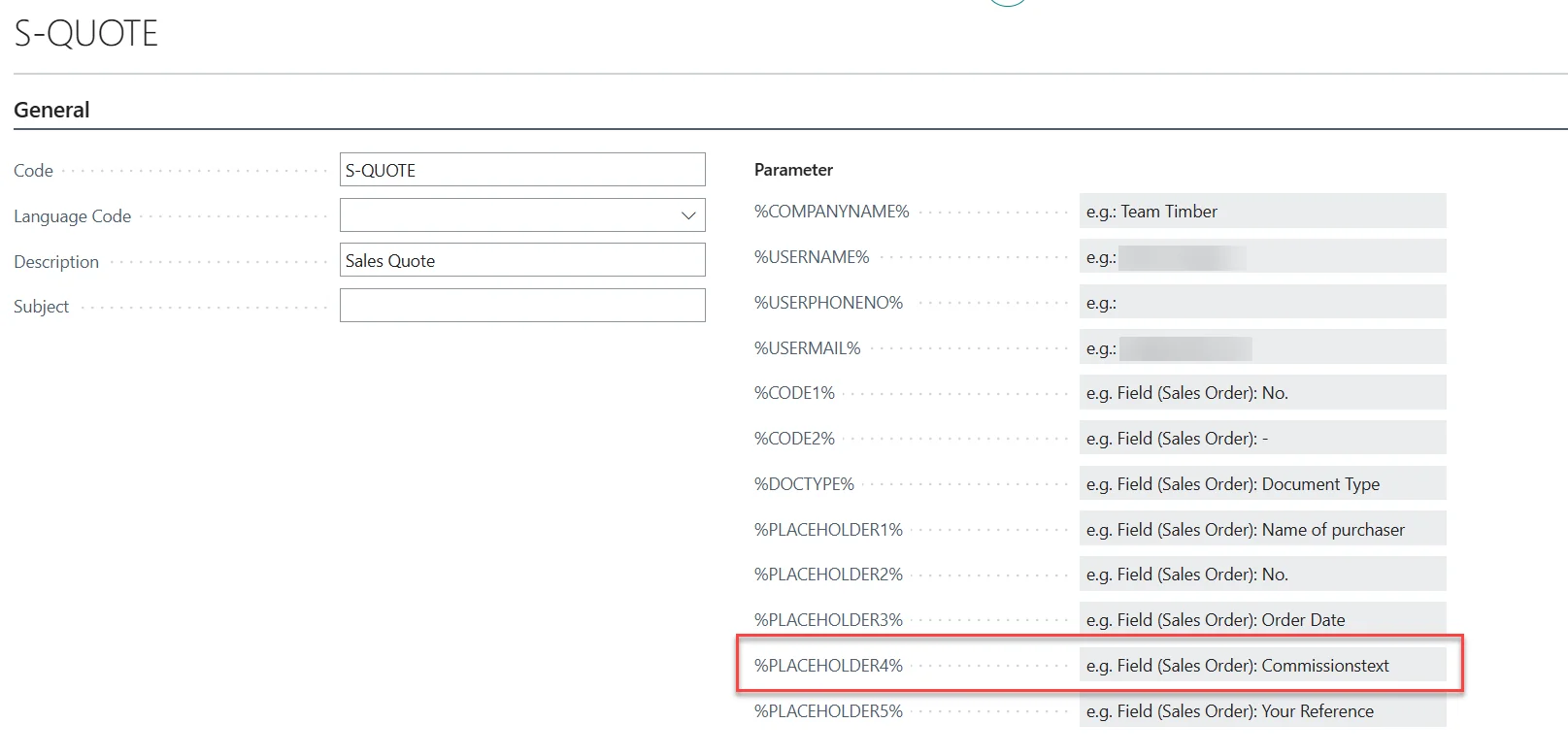
Add the Placeholder to the email text where you want the information to appear.
To try out what your email subject and message look like, follow steps 10 to 13 in the previous HowTo about Extended Mail Texts.
By adding the information you need to your email template, relevant details from your sales document can automatically appear in the email. This helps you create more consistent customer communication without having to enter the same information manually each time.