



As a purchaser or planner, you often manage a large number of vendors you buy goods from. When using Business Central to help plan your purchase orders for you, you want the suggestions it gives you to be concise, manageable, and fit the business process you and your vendor have. This process may include an agreement that purchase orders should not be changed once they have been confirmed.
In this case, you do not want Business Central to suggest modifications to those orders as it would do by default when the demand has changed.
Let’s look at how you could set that up!
Open the Vendors list.
Open the Vendor for which you would like to ensure Purchase Orders are not changed after confirmation.
Go to the Receiving FastTab and find the Planning Flexibility field.
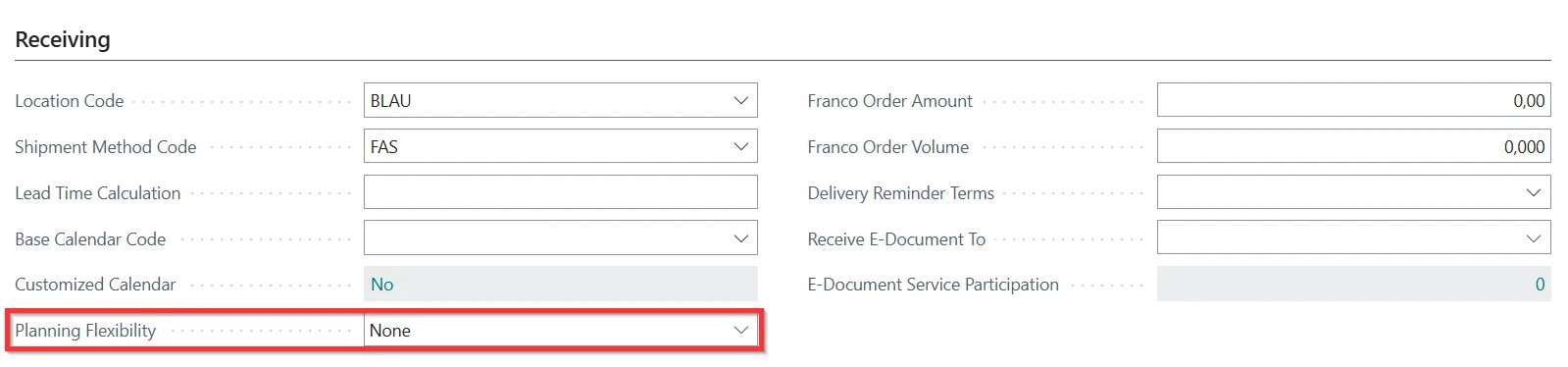
If you do not want the Requisition Worksheet or the Planning Worksheet to generate Planned Orders that suggest changing existing Purchase Orders, set the Planning Flexibility to None.
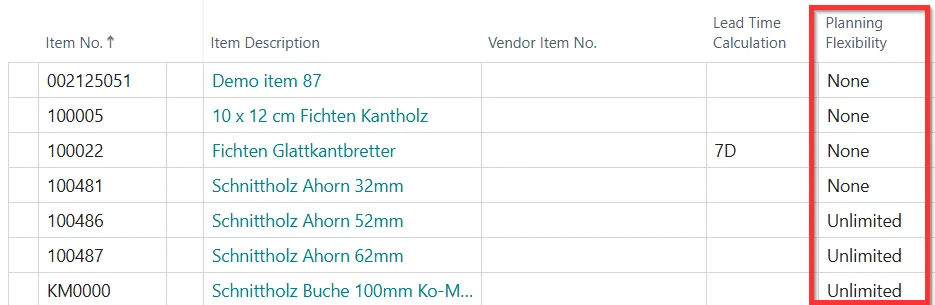
In the top menu, go to Related -> Purchases -> Items. This will open the Vendor Item Catalog, which gives detailed Item information related to this Vendor.
Note that the Planning Flexibility field also exists on this page. This is useful if Purchase Orders for specific Items should be changeable after confirmation. In the example below, 100486 and 100487 are set up differently than the rest of the Items purchased from the Vendor.
By adjusting the Planning Flexibility, you can prevent Business Central from suggesting changes to confirmed purchase orders. This keeps your planning suggestions cleaner and ensures that agreements with vendors are respected, reducing the need for manual corrections.