



In day-to-day warehouse operations, it is important that employees can immediately see on the report where an item is stored so they can pick it directly without searching for additional information in the system.
In a previous HowTo, you learned how to add additional information to report lines.
This HowTo builds on that functionality and extends it with two new Special Values which are extremely helpful for warehouse operations:
Let’s have a look at how you can configure these Special Values!
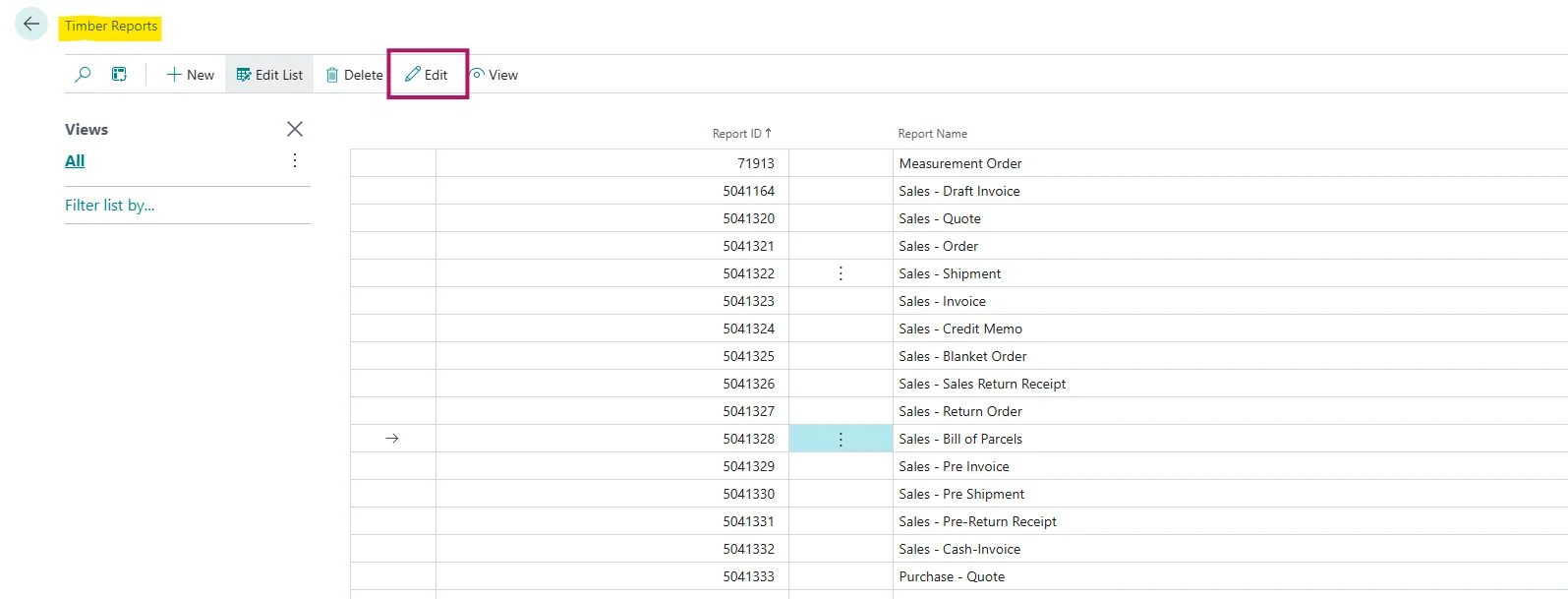
Open Timber Reports.
Select the report you would like to customize, for example Sales – Bill of Parcel.
Click Edit in the top menu to access the Timber Header Report Setup.
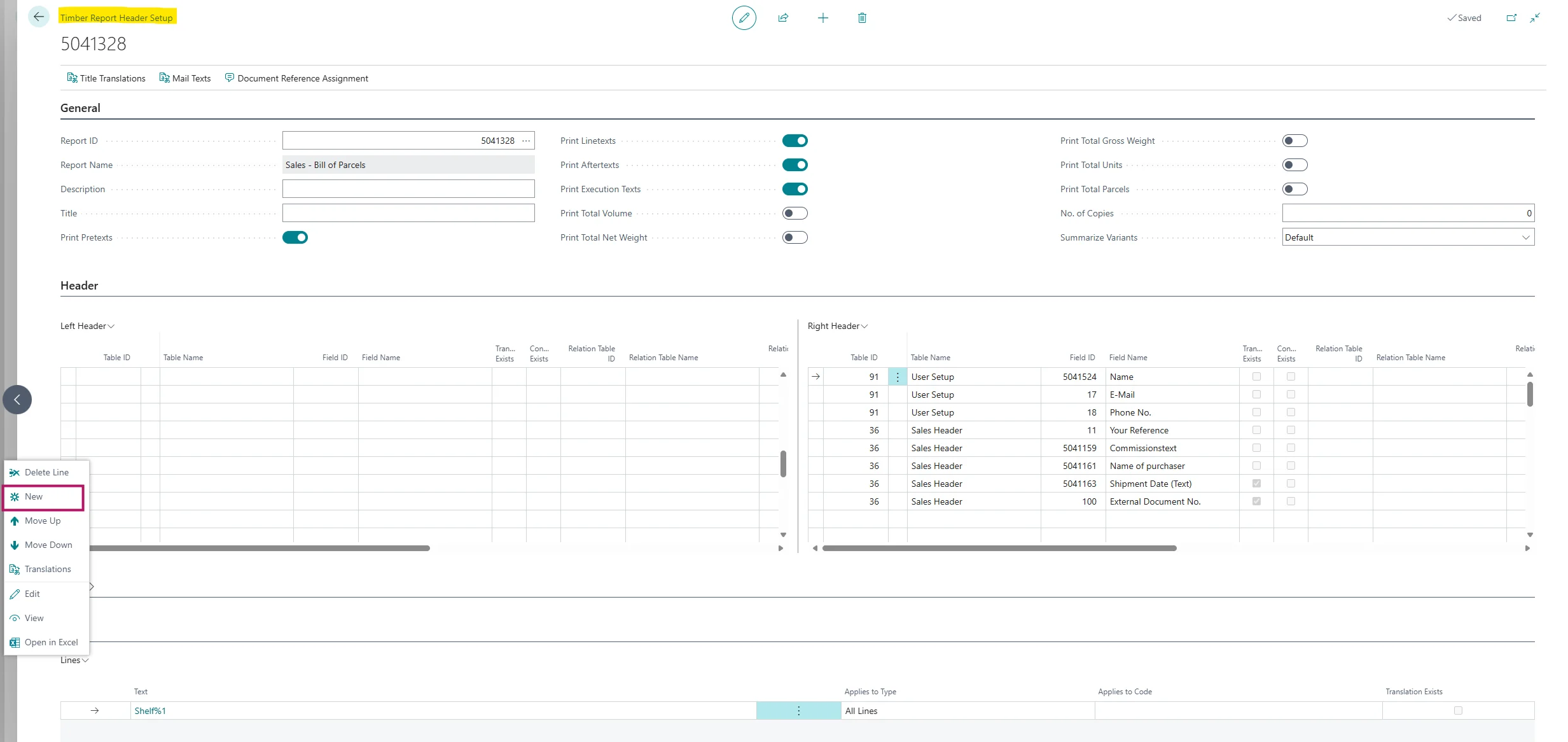
In the Lines FastTab, click on Lines and New to create a new report line.
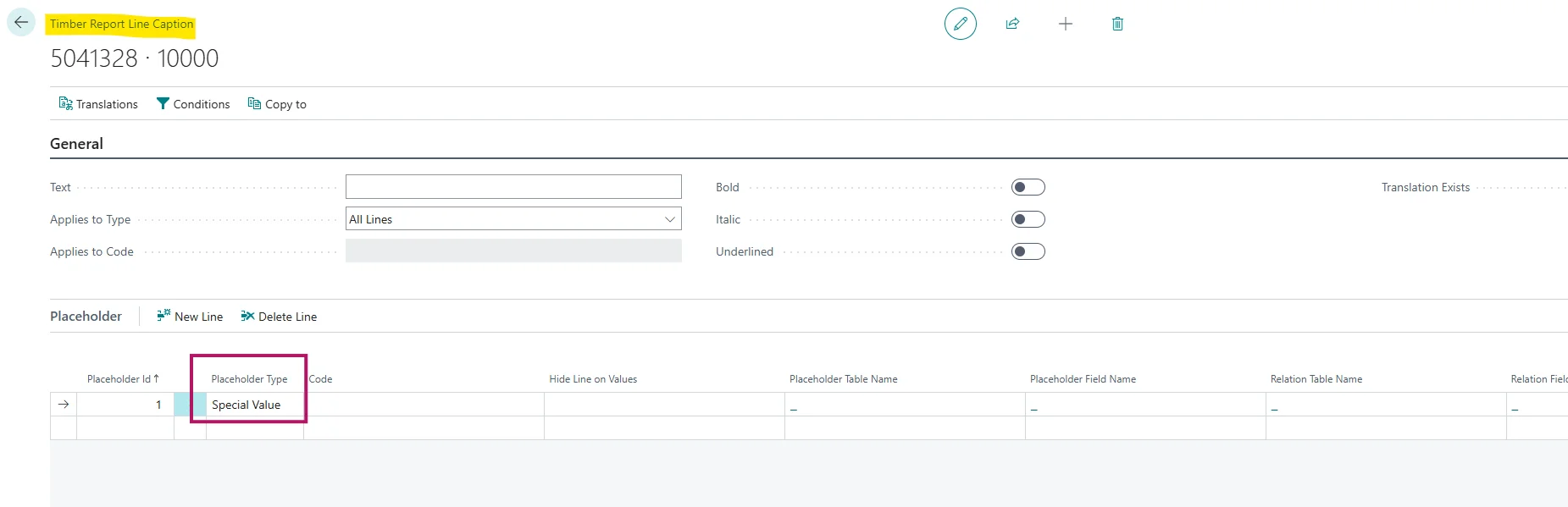
In the field Placeholder Type, select Special Value.
Select Shelf No. or Bin Content as Placeholder Value, depending on how warehouse information is maintained in your company:
On the General FastTab, in the Text field, enter the preferred output, e.g. Shelf No. %1 or Bin Content %1
In the Applies to Type field, select for which lines this information should be shown, for example All Items.
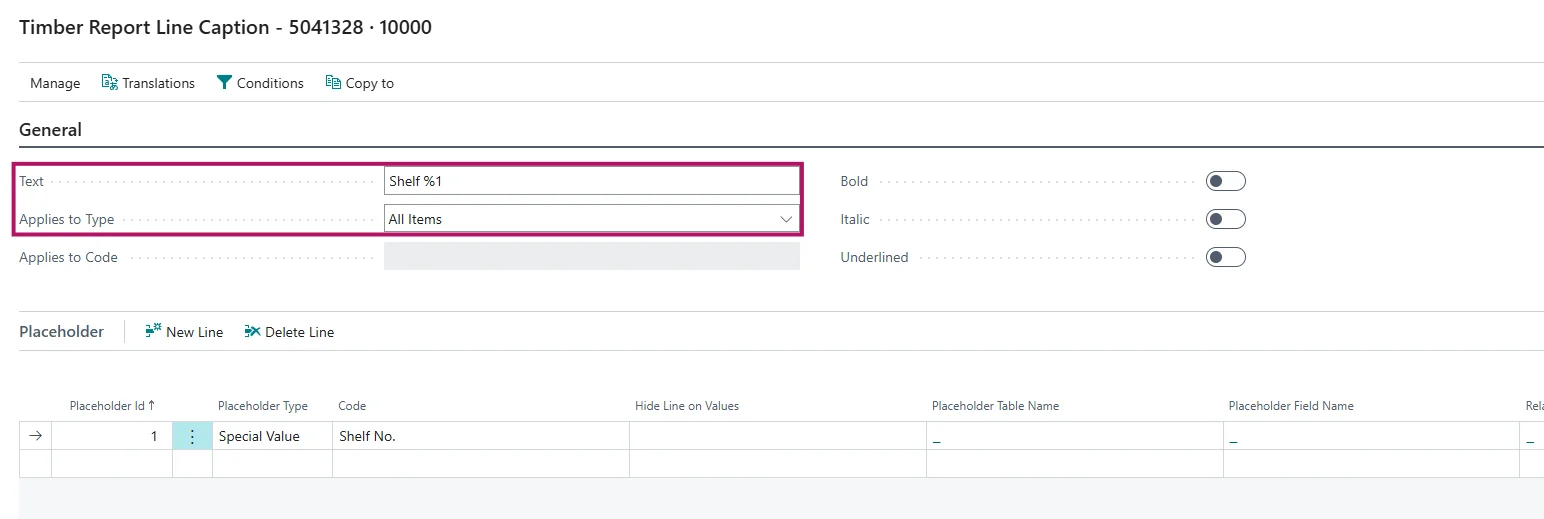
Close the Timber Report Line Caption page.
Depending on your setup, the warehouse information is now displayed directly on the report as Shelf No. or Bin Content.
To verify the setup, open a Sales Order and select Print/Send > Bill of Parcel. Then choose Preview (or print the report). The configured warehouse information, such as Shelf No. or Bin Content, should now be displayed directly on the report lines.
With the new Special Values Shelf No. and Bin Content, you can display warehouse information more flexibly directly on reports. This allows warehouse employees to immediately see where an item is stored and helps them perform the picking process faster.