



As a sales employee, you often need to support a customer during a phone call. The customer may want to add specific items to a sales quote or ask whether an item is available or refer to an earlier sales quote without knowing the quote number. Therefore, the required information needs to be available quickly in one place.
Let’s check your possibilities to find the answers to these questions quicker while having the customer on the phone.
Open Priceinfo Sales.
In the Customerinformation FastTab, enter the Customer that you have on the phone in the Name field.
In the Filter FastTab, you can set additional filters such as Location, Item, or Search Description to narrow down the overview. For example, the customer has a question about an quote for a plate. Therefore enter plate as Search Description.
As there the customer cannot remember the quote number or the article number, you would like to reduce the results even more. Click on Filter for “Quantity in Quote” in the top menu under Start. Now, you only see Items for which there is an existing Sales Quote.
Review the results to provide the customer with the requested information like Customer Price, Available Quantity, and Qty. on Purch. Order.
In the FactBox pane, you can review information based on the filter, such as the No. of Quotes in the Item/Sell-to Cust. Sales History section, and use this chance to discuss open quotes or orders with the customer.
Click on the requested Item to get additional information for the Last Invoice and Last Quote of the selected Item in the Price Sales Info FactBox.
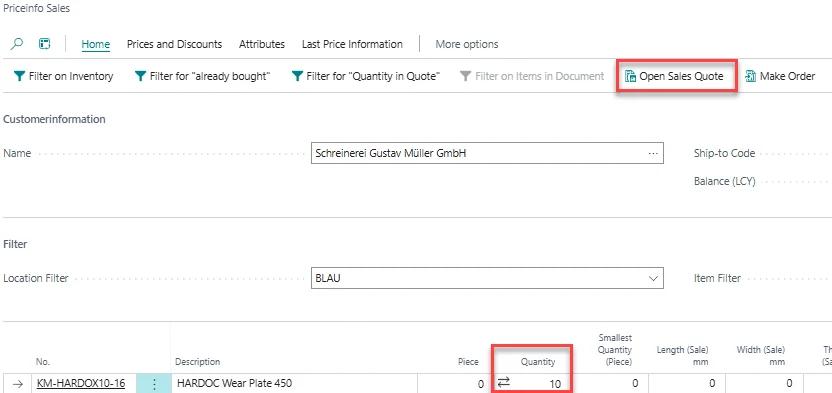
Now, the customer would like to receive an additional Sales Quote for 10 cubic meters of the requested plate, therefore, enter 10 in the Quantity column.
Select Home > Open Sales Quote in the top menu to create a new Sales Quote.
Using Priceinfo Sales, you now have the required information available in one place: requested items can be found quickly, availability can be checked during the customer call, and earlier sales quote information can be reviewed even if the customer does not know the quote number. This supports a faster response and allows the required items to be added directly to the sales quote.