



During daily business, there is often the need to gather structured information about items and their data quickly. You might need to compare several items which each other or you might need to consult the same information on a regular basis, such as sold quantities during a certain period, or forecasted requirements during the next couple of months.
Getting the needed information from Business Central can be time-consuming and even tedious, as most of that information is saved in different tables and pages.
Let’s have a look at how this can be done more quickly!
Open Item Overview Setup.
In the page that opens, you can specify filters on a date range, using Business Centrals standard date formulas in the General FastTab.
In the Location Filters FastTab, you can select the Locations you would like to filter on. To make the names of the Locations more self-explanatory, you can also change their captions in the Location Filter Caption fields.
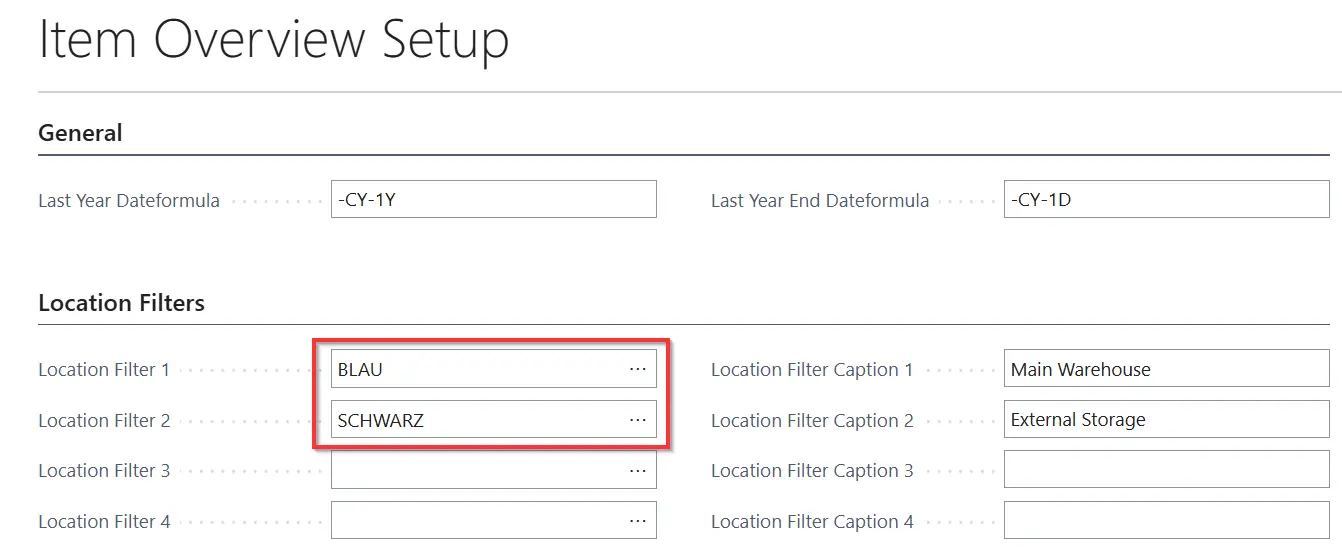
Once you are happy with all the filters, open Item Overview.
The Item Overview gives you plenty more filtering options in the header of the page, such as Item Numbers and Categories.
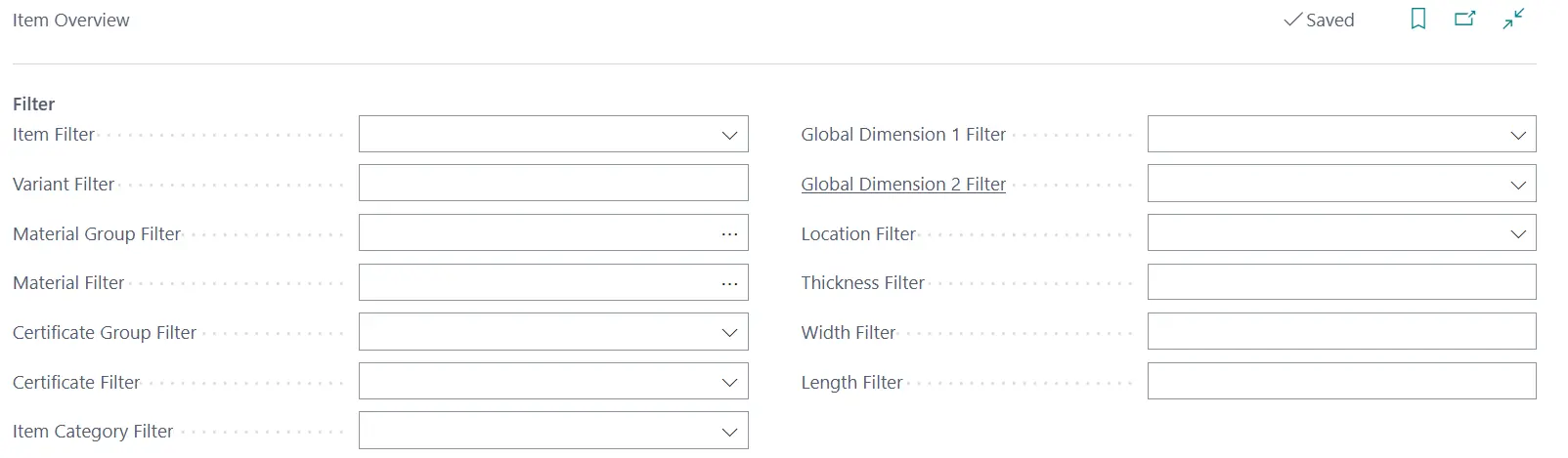
In the bottom section of the page, click on Calculate Item Overview to refresh it with the latest information. This step is necessary every time you use the page to make sure the latest data is displayed.

A wide range of data is available, so make sure to browse the options by scrolling to the right and also check for fields that are hidden and can be personalized.
Using the Item Overview provides a quick and flexible way to bring together key item information from across Business Central. By defining reusable filters, users can compare items, review quantities and requirements, and access relevant information in one place. As a result, recurring analysis becomes faster and less tedious.