
You work in customer service and receive a complaint because an item is damaged. The customer needs a replacement, and you also need to submit a claim to the supplier as it was a drop shipment. This means creating a replacement Sales Order for the customer, also a Return Order and Purchase Order for the supplier. Instead of entering each of these documents manually or even handing over that task to different teams, there should be a possibility to create these faster.
Let´s check which options you have in your Sales Return Order to decrease the workload for related documents.
Open Sales Return Orders.
Press + New in the top menu to create a new document.
Enter all mandatory data in the General FastTab, for example Customer Name or Shipment Method Code.
The customer gave you the shipment number of the material that was damaged. Therefore, click on Prepare > Get Posted Document Lines to Reverse…
On the page Posted Sales Document Lines change the Document Type Filter to Posted Shipments.
In the Lines FastTab click on Document No. and use Filter.
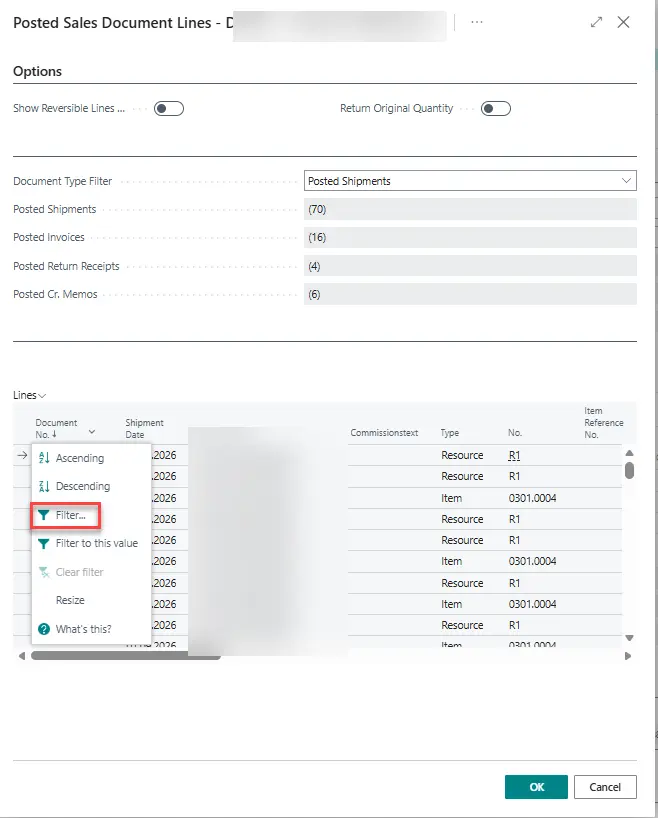
Enter the Document No. you received from the customer and confirm with OK.
You will see all lines shipped with that number. Mark the Item line which was claimed by the customer and confirm with OK.
If required, you can change the quantity or price on the Sales Return Order line but, as the customer claimed all shipped materials in this example, the Sales Return Order is now prepared.
Click Home > Create Return-Related Documents in the top menu.
Enter the Vendor No. from whom the material was purchased.
We require a claim and new order for the Vendor therefore activate Create Purch. Ret. Order and Create Purchase Order.
Add the Vendor Shipment No., Vendor Invoice No. or Vendor Order No. when available.
This helps you trace the return later.
Select Create Sales Order as the customer needs a replacement.
Enter the Purchasing Code e.g. DIRECT for drop shipment.
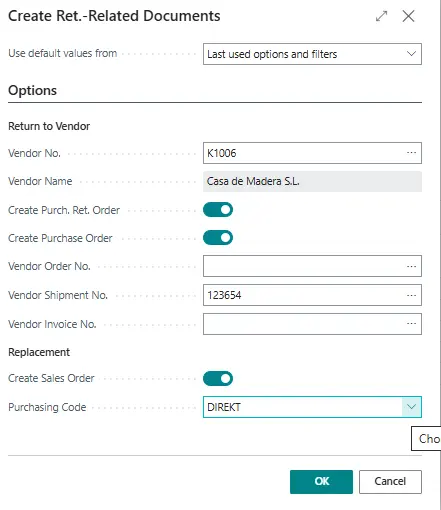
Press OK to create all selected documents at once.
An overview with all Return-Related Documents will open.
From that page you can already open the documents by clicking More Options > Related > Line > Show Document.
The return is now linked to all documents required for the next steps. Your team can replace the damaged item, reorder it from the supplier, and process the supplier’s return in one streamlined workflow—without entering the same information multiple times. This saves time, reduces duplicate work, and improves traceability throughout the complaint process.