As a salesperson, you send out many quotes every week. Some turn into orders, but many do not. When a customer says no, you simply delete the quote and move on. A few months later, your sales manager asks why so many quotes were lost last quarter. Was the price too high? Was the delivery time too long? Did the customer choose a competitor?
You cannot answer the question, because nobody wrote down the reason when the quotes were deleted. Your manager has to rely on what the sales team remembers, and there is no reliable basis for adjusting prices, delivery promises or the sales approach.
First, let’s set up the common cancellation reasons. Open Quote Cancelations.
If no Codes exists yet, choose + New and add a Code for each reason why a quote can be lost. Fill in a recognizable Code and Description, for example PRICE with the description Price too high.
If it doesn’t exist yet, add a separate Code for quotes that are archived automatically when the Automatic Archiving Date is reached, for example AUTOARCHIVE with the description Expiry (automatically deleted).
To find out how you can set up this automation, check the previous HowTo on how to manage follow-up schedules for different quote types.
Now that we’ve set up the common reasons, let’s make it mandatory. Open Timber Setup.
Activate the Quote Cancellation required field in the Notifications FastTab to make it mandatory when a quote is deleted.
Now, imagine a customer calling to decline a quote. To delete it, open the Sales Quotes list and open the Sales Quote that the customer declined.
Try to delete it by clicking the Bin icon in the top of the window and clicking Yes in the window that pops up.
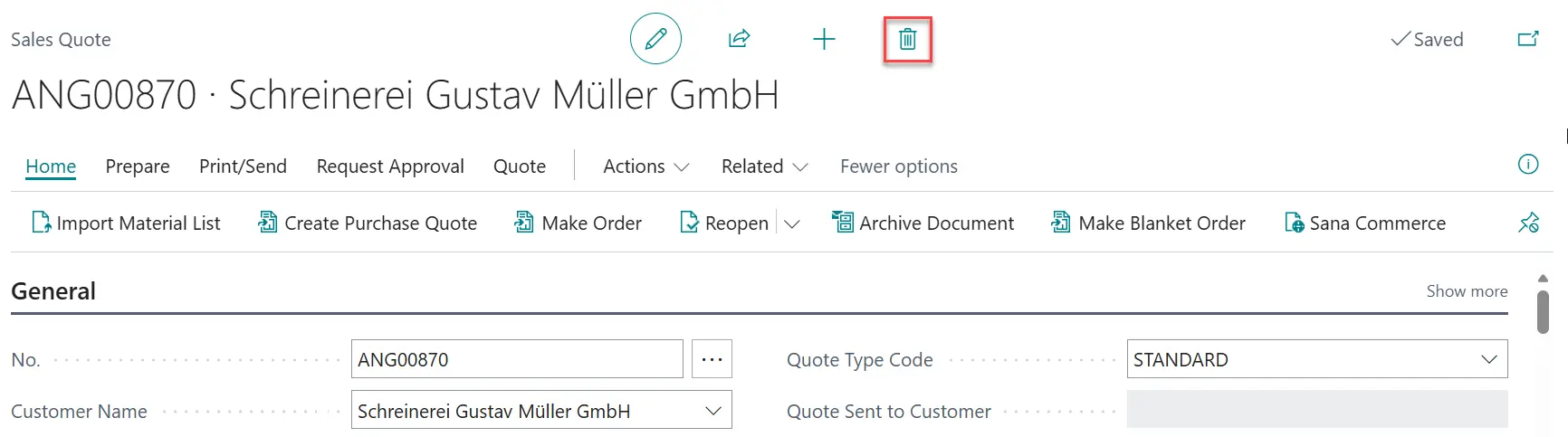
You receive an error notification which tells you that you need to enter a quote cancellation code before deleting the Sales Quote, as expected. Press F5 to refresh the page.
In the General FastTab, find the Quote Cancellation Code field and select the relevant reason, for example, PRICE.
Try to delete the Sales Quote again; there should not be an error now.
When you want to look back at the end of the month on why your Sales Quotes were lost, open Sales Quote Archives and open the individual archived Sales Quotes to find out why it was cancelled by checking the Quote Cancellation Code.
Every lost quote now comes with a clear reason. Instead of guessing, you can see why customers said no, whether it was the price, the delivery time or something else, and use that knowledge to improve your offers. At the same time, quotes that nobody follows up on are still cleaned up automatically, so your quote list stays tidy.