
As an accounts payable employee, you may work with vendors whose payment conditions depend on when an invoice is received or issued during the month.
For example, your company has agreed that invoices dated from the 1st to the 9th are due at the end of the current month, invoices from the 10th to the 19th are due on the 10th of the following month, and invoices from the 20th until the end of the month are due on the 20th of the following month.
Managing these different conditions manually can result in incorrect due dates. This becomes especially important when you rely on accurate payment dates to forecast how much money your company will need at a particular time.
Let’s see how this can be handled more effectively!
First, open Payment Terms.
Select the Payment Terms for which you need the different payment conditions.

In the Group Code column, select a Payment Terms Group or create a new one by clicking on +New.

Open the relevant Payment Terms Group and click on Assignment.

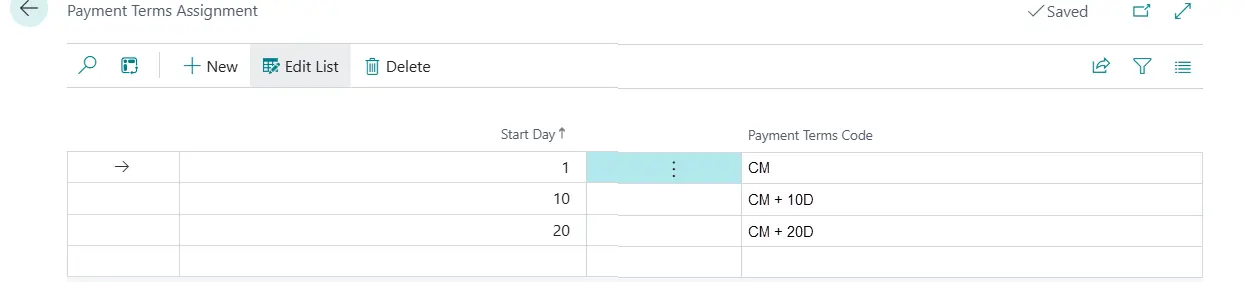
On the page that opens, you can create an assignment for each Start Day and assign the corresponding Payment Terms Code. For example, create assignments starting on days 1, 10, and 20. That would mean, that the invoices for the assigned Payment Terms Code are created with a due date of the 1st, 10th or 20th day of the next month respectively.
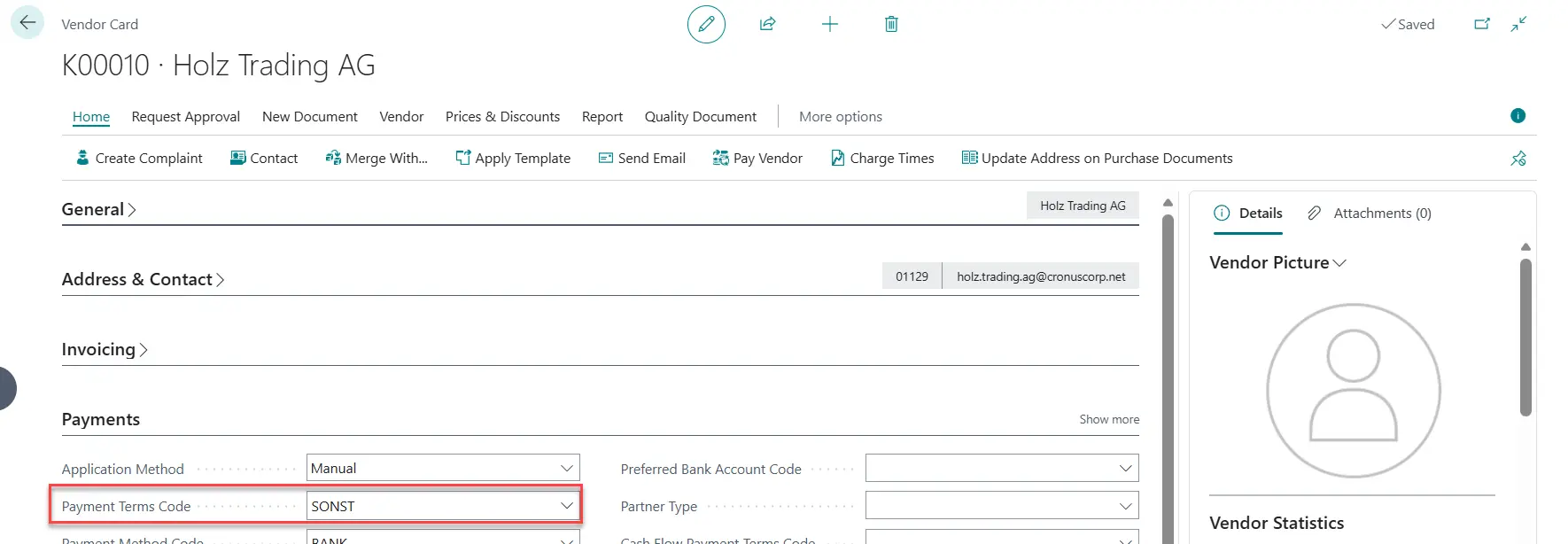
Now, open the Vendor Card for the Vendor that uses these payment conditions and choose the applicable Payment Terms Code.
When you create a new Purchase Order for this Vendor, the code is copied to the Purchase Order and the applicable Payment Term is determined automatically.
When creating a Purchase Invoice for the Vendor, check the Document Date. The Payment Term changes dynamically depending on the day of the month.
For the example, a document date on the 1st uses the Payment Term for the end of the current month; a document date on the 10th uses the Payment Term for the 10th of the next month; a document date on the 20th uses the Payment Term for the 20th of the next month.
When your vendors use different payment conditions depending on the invoice date, you no longer need to determine the correct condition manually for every document. The appropriate payment condition is selected based on the date, helping you maintain more reliable due dates and plan upcoming payments more accurately.