



As a sales manager, you sometimes need to replace old items with new ones when suppliers discontinue products. You want to make sure your team can see what customers bought before, even if the Item Number has changed. For example, when a vendor replaces a product with a similar product, you want to link the old and new Items, so the Last Price and Last Quote features show the history of both.
Let’s see how to do so!
Go to Items and click + New to create the new Item that will replace the discontinued Item.
Fill in all the relevant fields on the Item Card.
In the Planning FastTab, find the Predecessor field and enter the Item Number of the old Item that will be discontinued.
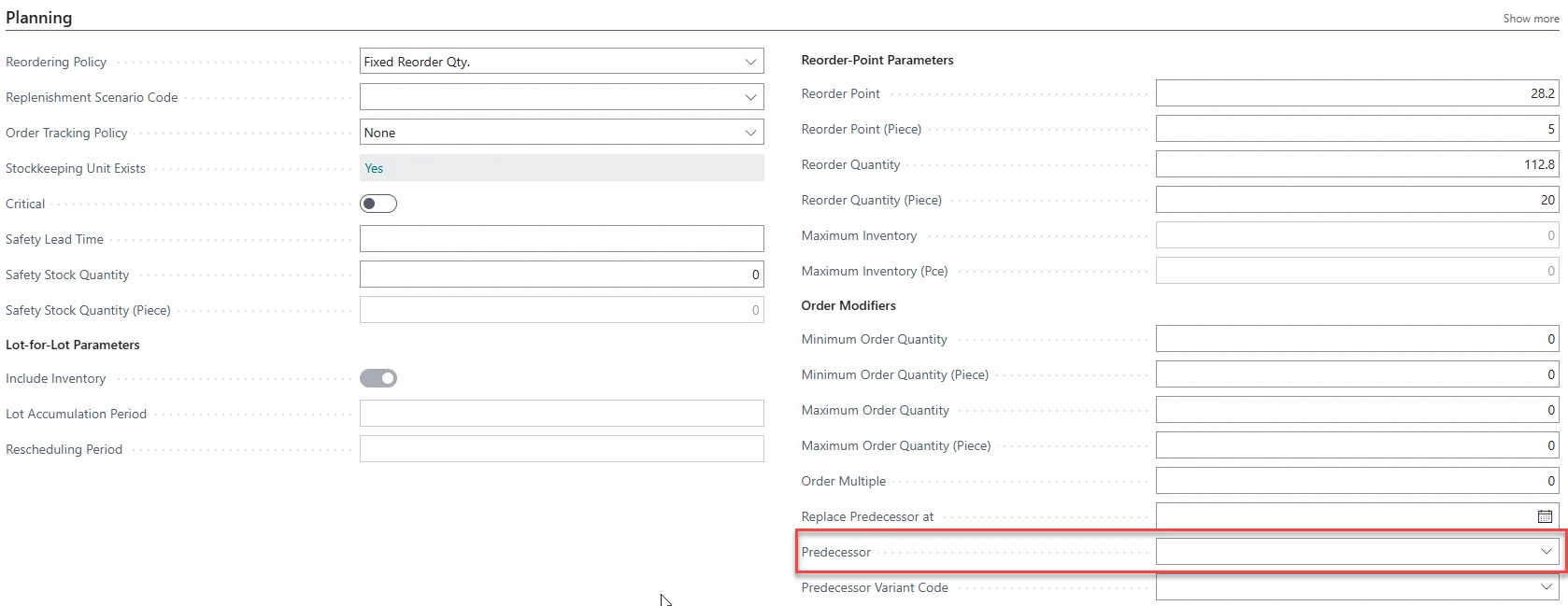
Set the date in the Replace Predecessor at field to when the change takes effect.
When creating a Sales Quote or Sales Order, enter the new Item in the Lines FastTab.
As you can see, the sales history for both the old and new Items are shown.
By linking old and new Items in Business Central, your sales team can always see what customers bought before, even when products change. This keeps your sales history accurate and helps you provide better service!