



As an accountant or purchasing manager, you want to make sure that the amounts on your purchase invoices and credit memos are correct and match the sums of the individual lines. In the past, errors often had to be checked manually.
With the new Check Doc. Total Amounts feature, you can perform this check directly on the document before posting it. This helps you avoid mistakes in accounting and saves time.
Let’s see how to set up and use the Check Doc. Total Amounts feature!
Open Purchases & Payables Setup.
On the General FastTab, find Check Doc. Total Amounts.
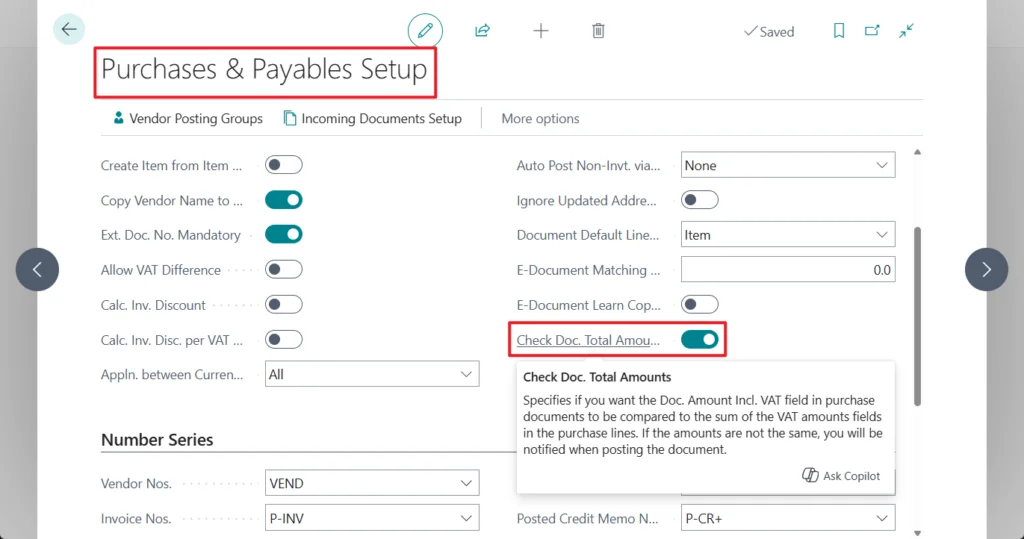
Activate Check Doc. Total Amounts to enable the validation of the Doc. Amount Incl. VAT and Doc. Amount VAT fields on Purchase Invoices and Credit Memos.
Open a Purchase Invoice or Purchase Credit Memo.
The Doc. Amount Incl. VAT and Doc. Amount VAT fields are now visible on the card under the General FastTab.
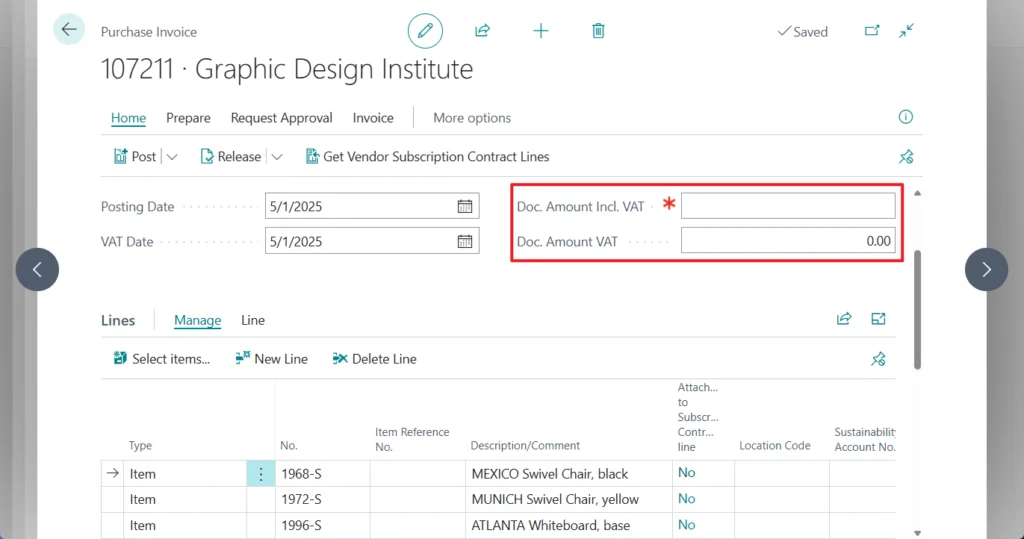
Enter the total amount in Doc. Amount Incl. VAT.
The Doc. Amount VAT field is automatically calculated if all lines have the same VAT rate.
If there are multiple lines with different VAT rates, check that the automatically calculated Doc. Amount VAT is correct and adjust manually if needed.
Post the Purchase Invoice or Purchase Credit Memo.
Business Central automatically checks whether the sum of the lines matches Doc. Amount Incl. VAT and Doc. Amount VAT.
If the amounts do not match, you will receive a message, and the document cannot be posted.
With Check Doc. Total Amounts, you can ensure that your purchase invoices and credit memos are correct. Errors are automatically detected before posting, so your accounting stays reliable, and you save time.
Since this is a standard feature in Business Central, you can find more information from Microsoft here: