



Every day, purchasers need to determine which items to buy from vendors and in what quantity. Identifying these requirements is often done relying on manual estimates or disconnected spreadsheets.
Business Central offers a smarter, easier, and more efficient solution! It can be used to calculate purchase requirements because it centralizes and automates the entire process by integrating data from sales forecasts, inventory levels, supplier lead times, and production plans.
For Business Central to be able to do this, a reordering policy needs to be specified for the SKU. One of the reordering policies offered is Maximum Qty., which will create a purchase requirement to replenish the inventory to a specified maximum level based on pre-determined parameters such as safety stocks and reorder points.
Let’s go through the necessary steps to set this up.
Open the list of Stockkeeping Units and open the SKU you would like to make the set up for.
First, go to the Replenishment FastTab and select the appropriate Replenishment System.
For items bought from vendors, this would be Purchase. Also, enter the time it takes to replenish the Item in the Lead Time Calculation field.

Next, go to the Planning FastTab and choose Maximum Qty. as the Reordering Policy.

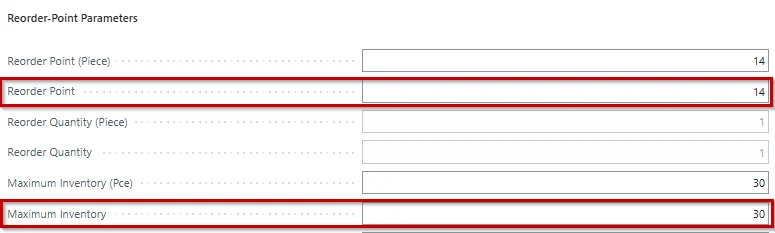
To make sure the Reordering Policy works properly, a Reorder Point and a Maximum Inventory should be specified.
Business Central’s Requisition Worksheet will create a Planned Order every time the available inventory falls below the reorder point and will suggest ordering enough quantity for the vendor to fill the inventory to the specified maximum. Therefore, the reorder point must always be lower than the maximum inventory and both parameters must be larger than 0. Both fields are also located in the Planning FastTab.
In the example shown below, the SKU will be reordered every time the available inventory falls below 14 to fill the inventory to 30.
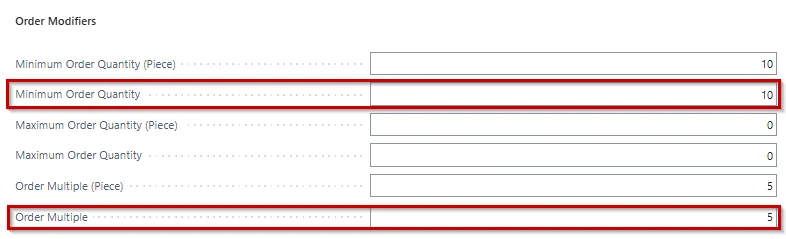
You may also want to add certain modifiers to your orders, such as minimum order quantities and/or ordering only full pallets. This can be achieved by specifying these Order Modifiers in the Planning FastTab.
Setting up a suitable Reordering Policy can greatly increase the efficiency of the purchasing process by calculating purchase requirements using the Requisition Worksheets and therefore eliminating the need for time-consuming manual calculations.
Using Reordering Policies is a standard feature in Business Central. Microsoft offers detailed documentation on this topic as well, which you can find via the links below:
Design details – Handling reordering policies – Business Central | Microsoft Learn
Design details – planning parameters – Business Central | Microsoft Learn