



As a purchase manager, you are constantly aiming to optimize your purchase costs. Paying under-delivery fees or freight charges to vendors because your order did not reach a certain agreed value or volume can be costly and avoidable.
But keeping the franco values and volumes in mind for multiple vendors and many different items requires either a great memory – or some smart help from Business Central.
Let’s go through the necessary steps to set up franco values and volumes.
Open the list of Vendors and select the Vendor you would like to make the set up for.
Go to the Receiving FastTab and look for the fields Franco Order Amount and Franco Order Volume.

Enter the values you need in both or just one of the fields. Franco Order Amount will be in the currency set up for the vendor, Franco Order Volume in m3. The numbers specified here are valid for all Purchase Orders to that Vendor, regardless of the Item.
When using the Planning Worksheet or the Requisition Worksheet, the Franco Order Amount and the Franco Order Volume will now be shown in the Planning Factbox on the right-hand side.
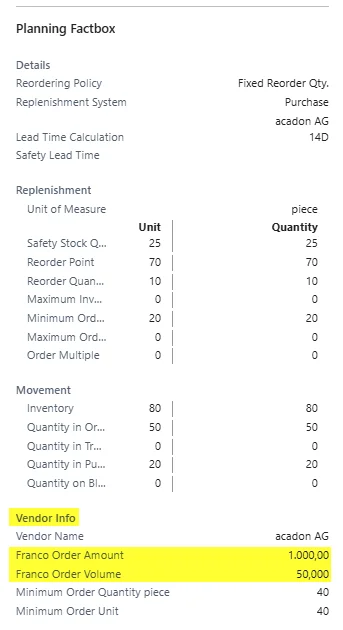
Setting up Franco Order Amounts and Franco Order Volumes makes it easier for purchasers to decide whether to increase the purchase quantities suggested by Business Central, helping to avoid unnecessary costs!