



As a sales employee, entering sales orders is a core part of your daily work. The process can be tricky and time-consuming because you need to consider many details, like product selection, quantities, customer data, delivery options, and pricing. With so many factors to keep track of, it’s easy to overlook something. Imagine your company works with fixed freight costs, which need to be added to each Sales Order, regardless of the order size but depending on the Shipment Method. To make your job easier and reduce the risk of errors, you’re happy that this process can be automated.
Let’s check how to setup fixed extra charges per Shipment Method!
Open Shipment Methods.
You can add the costs to an existing code but in our case, we create a new Shipment Method.
Therefore, press +New in the top menu.
Enter Delivery in the Code and Description columns.
As our focus is on the freight charges, open the drop-down menu in the Additional Charge Code column. To enter a new code press +New.
In the Additional Charges list that opens, enter Delivery in the Code column and Fixed Delivery Costs as a Description.
In the header action panel, click on the three dots and click Allocations.

In the Additional Charge Allocations window enter the Resource No. which you expect to be entered in a Sales Order for the fixed freight charges.
Enter Freight Costs as the Description Placeholder.
In the Calculation Type column select Resource Sales Price (fixed).
The basic setup is finished. Now let’s try it out and create a new Sales Order.
Enter all mandatory fields in the General FastTab including the created Delivery as Shipment Method Code.
Enter at least one Item line with a Quantity.
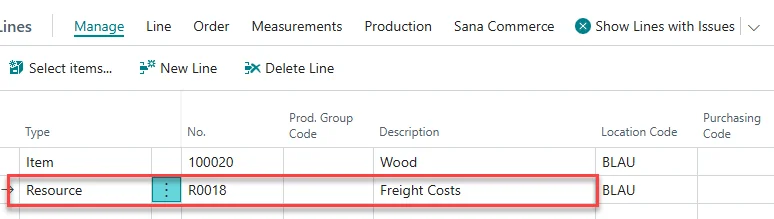
After your Sales Order is entered, Release it and the Resource for Freight Costs will be entered as a Sales line automatically.
Now you know how to set up fixed extra charges, like freight costs, for each Sales Order. There’s no need for an additional reminder to enter the Resource manually. Since additional charges offer even more functionalities and ways to streamline your work, stay tuned for our next HowTo.